You have a stack of CBR and CBZ comic files. They work fine in a comic reader, but now you need them as PDFs. Maybe to share with someone, read in Apple Books, print specific pages, or upload to a service that only accepts PDF. The question is how to convert CBR to PDF on your iPhone without a computer.
You don't need to email files to yourself, use a sketchy online converter, or open your laptop. ComicFlow can convert CBZ to PDF on iPhone in about 10 seconds, directly on your device, with three quality presets and one-tap sharing.

Why Convert to PDF?
CBR and CBZ files are great for dedicated comic readers, but PDFs are the universal format. There are a few reasons you might want to convert:
Sharing. Not everyone has a comic reader. Send someone a PDF and they can open it on any device, any operating system, no extra app needed.
Apple Books. If you want your comics in Apple's built-in reading app alongside your ebooks, you need PDF. Apple Books doesn't understand CBR or CBZ.
Printing. Need to print a cover, a specific page, or a whole issue? PDF is the standard for print workflows.
Cloud storage. Services like Google Drive, Dropbox, and iCloud render PDF previews inline. CBR and CBZ files just show a generic icon.
Annotation. Want to mark up pages, highlight panels, or add notes? PDF annotation tools are everywhere. Comic archive annotation tools are not.
Archival. PDF is an ISO standard (PDF/A) designed for long-term preservation. It will be readable decades from now. CBR and CBZ are informal formats with no governing specification.
What Formats Can You Convert?
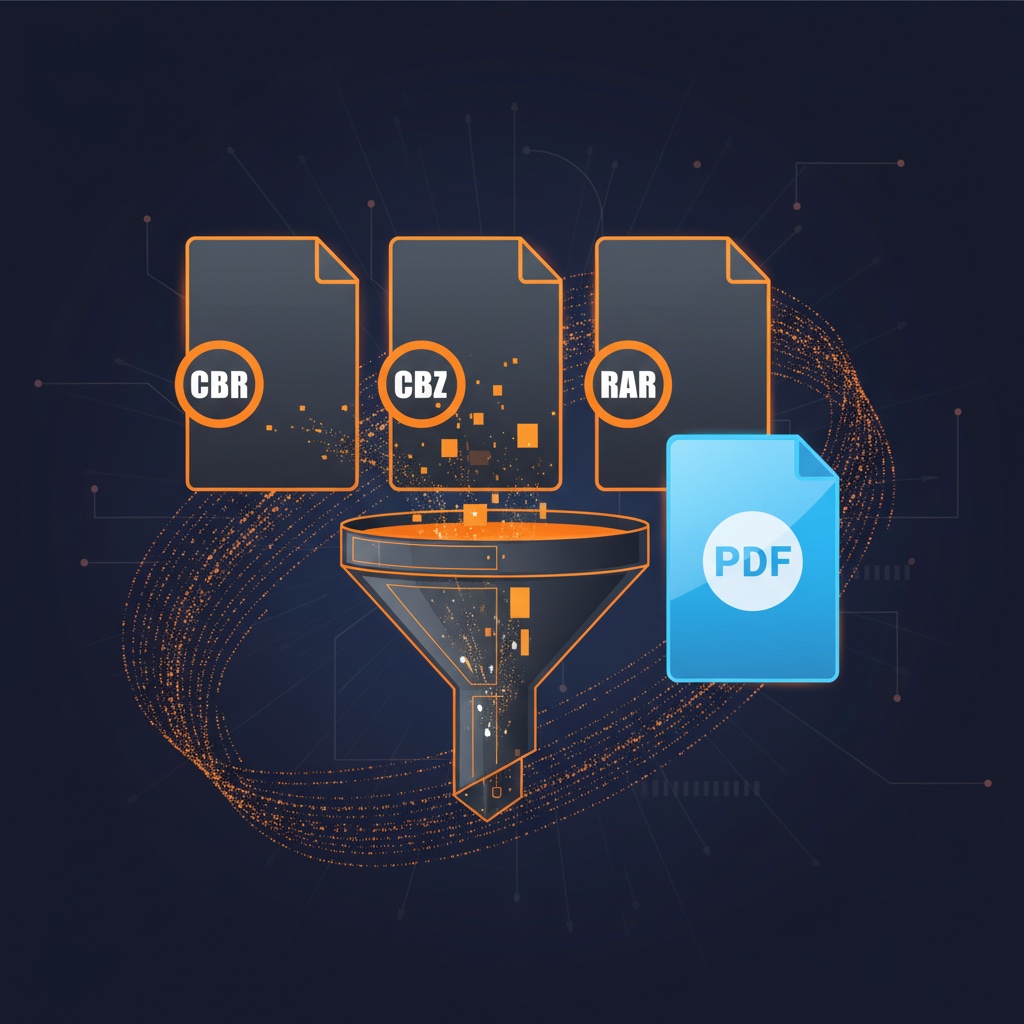
A comic to PDF converter needs to handle more than just .cbr and .cbz. In practice, comic files come in five formats:
| Format | Extension | What It Is |
|---|---|---|
| Comic Book RAR | .cbr |
RAR archive of page images |
| Comic Book ZIP | .cbz |
ZIP archive of page images |
| RAR Archive | .rar |
Same as CBR, just different extension |
| ZIP Archive | .zip |
Same as CBZ, just different extension |
.pdf |
Already a PDF, no conversion needed |
Many people have .rar and .zip files that contain comics but weren't renamed to the "comic book" extensions. A good CBR to PDF app for iOS should handle all five.
ComicFlow converts all of these. Import any comic archive and convert it to a standard PDF with one tap.
Step-by-Step: Convert a Comic to PDF
It takes about five taps:
1. Import Your File
Open ComicFlow and import your comic file. You can import from:
- Files app: Browse to the file and tap it
- Safari downloads: Tap the download, share to ComicFlow
- Email attachments: Tap the attachment, share to ComicFlow
- AirDrop: Send from your Mac, pick ComicFlow as the destination
2. Go to Convert Tab
Tap the Convert tab at the bottom. Your imported file appears in the conversion list.
3. Choose Quality
Select one of three quality presets:
- High for maximum detail, largest file
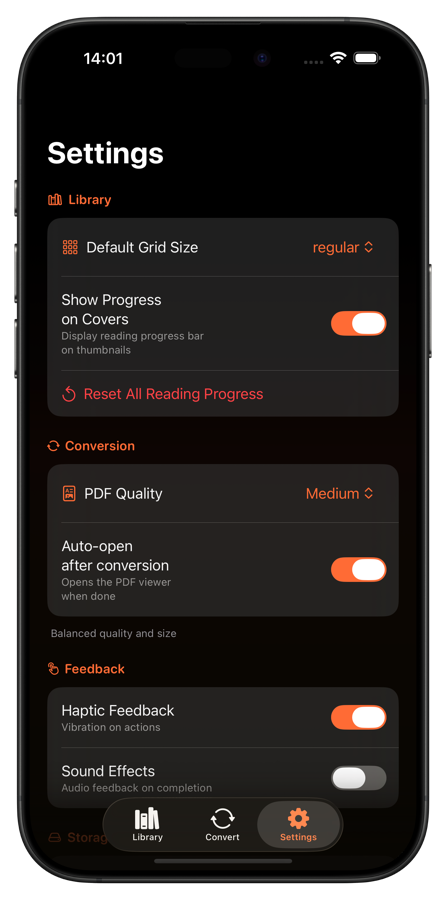
- Medium for balanced quality and size (recommended for most uses)
- Low for the smallest file, good enough for reading on screen
More on quality presets in the next section.
4. Tap Convert
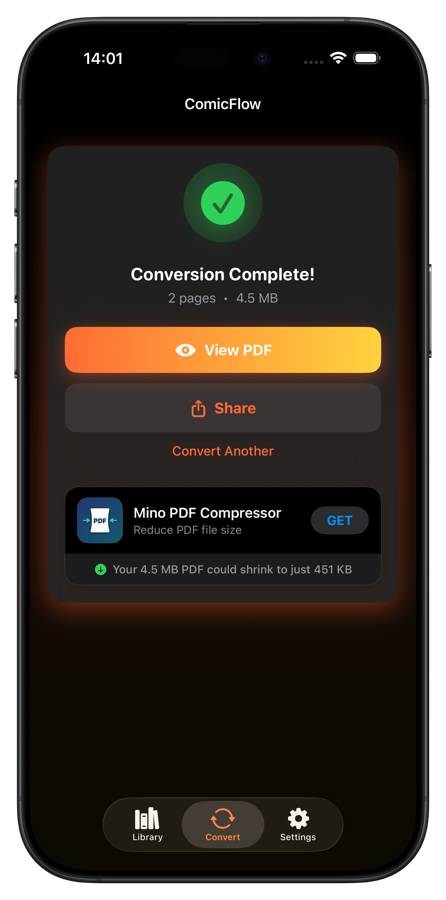
One tap and the conversion starts. For a typical 20-30 page comic, it takes a few seconds. When it's done, you'll see the file size and page count.
5. Share or View
After conversion, you get two options:
- View PDF opens the PDF immediately so you can check it
- Share sends it via AirDrop, Messages, Mail, save to Files, or upload to any cloud service
Quality Presets Explained
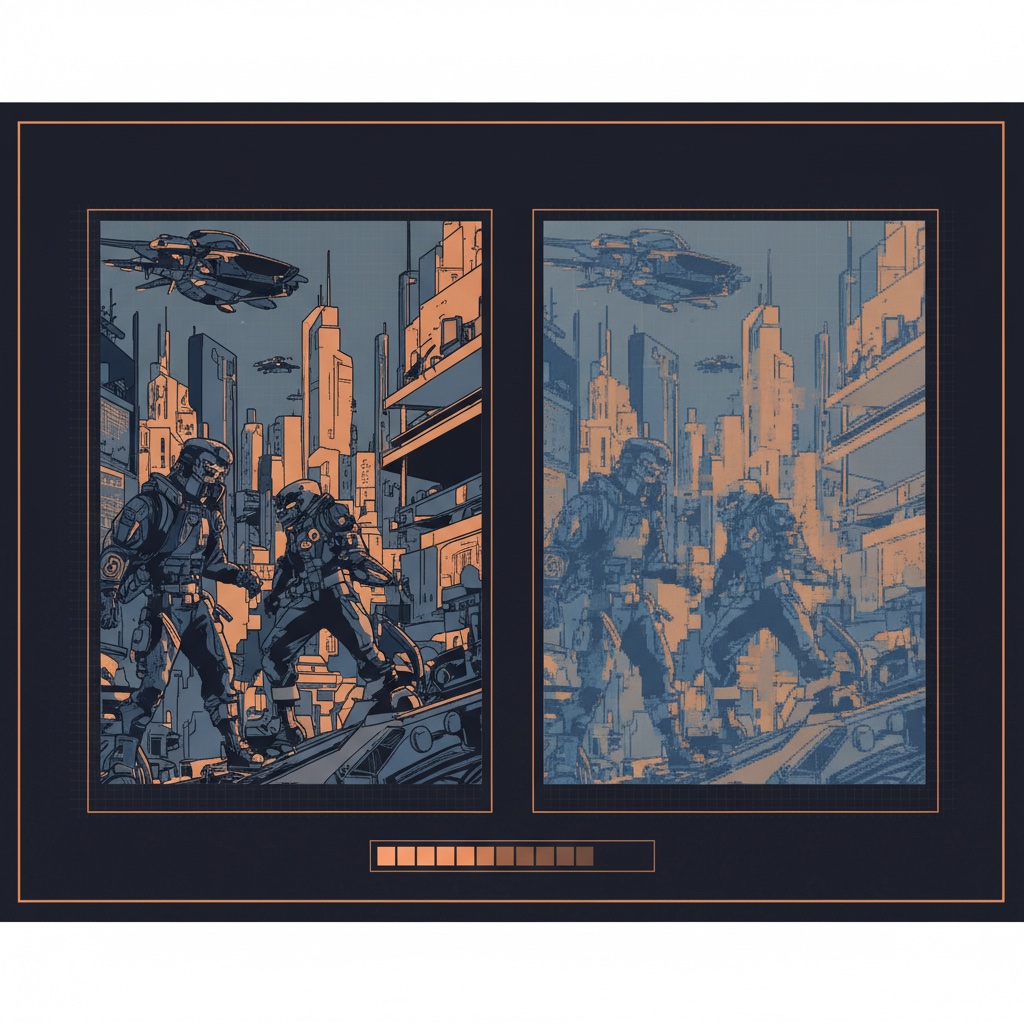
The quality setting controls how comic page images are compressed into the PDF. Each preset targets a different use case:
High Quality
Best for: archival, printing, zooming into fine detail.
Preserves the original image quality as closely as possible. The resulting PDF will be large, sometimes close to the size of the original CBR/CBZ file. Use this when image fidelity matters more than file size.
Medium Quality
Best for: general reading, sharing, Apple Books.
A balanced compression that keeps pages looking sharp at normal zoom levels while cutting file size significantly. This is the default and works well for 90% of use cases. You won't notice quality loss during normal reading.
Low Quality
Best for: quick shares, limited storage, large collections.
Aggressive compression that produces much smaller files. Pages may look slightly softer if you zoom in, but they're perfectly fine for reading at normal scale on a phone or tablet screen. Good when you're converting dozens of files and storage is a concern.
A practical example: A 25-page comic at 50MB as a CBR might convert to roughly 45MB (High), 20MB (Medium), or 8MB (Low). Exact sizes depend on the source image resolution and content.
Converting Manga and Webtoons
Comic conversion isn't just for Western comics. The same process works for manga and webtoons:
Manga volumes. Japanese manga typically comes as CBZ files with high-resolution black-and-white scans. Converting manga to PDF works especially well at Medium quality, since B&W art has less data than full-color pages and compresses efficiently.
Webtoons. Korean webtoons in long-strip format convert to multi-page PDFs. Each vertical segment becomes a PDF page. This is useful if you want to read webtoons in a PDF reader that supports continuous scrolling.
Manhua. Chinese comics work identically to manga for conversion purposes.
The conversion preserves page order exactly as it appears in the source file, so right-to-left manga page ordering is maintained in the output PDF.
Why Not Use an Online Converter?
You could Google "CBR to PDF online" and upload your files to a web converter, but there are some real downsides:
Privacy. You're uploading your files to someone else's server. You don't know what happens to them after conversion. They could be stored, scanned, or shared.
File size limits. Most free online converters cap uploads at 50-100MB. A single high-res comic volume can exceed that easily.
Speed. Upload time + server processing + download time is much slower than converting locally on your phone.
No quality control. Online converters typically give you one quality setting (or none). You can't choose between High, Medium, and Low.
Requires internet. If you're offline (on a plane, in a subway, traveling abroad) online converters don't work.
ComicFlow converts everything locally on your device. Your files never leave your iPhone, no internet connection is required, and there are no upload limits.
Tips for Better Conversions
Check the source quality first. If your CBR file contains low-resolution scans, converting at High quality won't magically improve them. You'll just get a larger file with the same image quality. Use Medium or Low instead.
Use Medium as your default. It's the best balance for nearly every situation. Only switch to High when you need print-quality output or plan to zoom into fine linework.
Auto-open saves a step. In ComicFlow's settings, enable "Auto-open after conversion" to immediately view the PDF when it's done. Saves you a tap.
Share directly after converting. The Share button right on the completion screen lets you AirDrop, email, or save to Files in one step. No need to hunt through your file system for the output.
Give It a Try
Converting your first comic takes about 30 seconds:
- Download ComicFlow ($2.99, one-time purchase)
- Import a CBR, CBZ, RAR, or ZIP file
- Tap Convert, choose your quality
- Share or view the PDF
Runs entirely on-device. No subscription, no account, works offline.
Same workflow whether it's one issue or a hundred: import, convert, share.